Main content
Quick Reference Guide
How to Create and Save a Session
VITALsync How To | Create and Save a New Session
Document a completed session by creating a new entry in the Sessions tab.
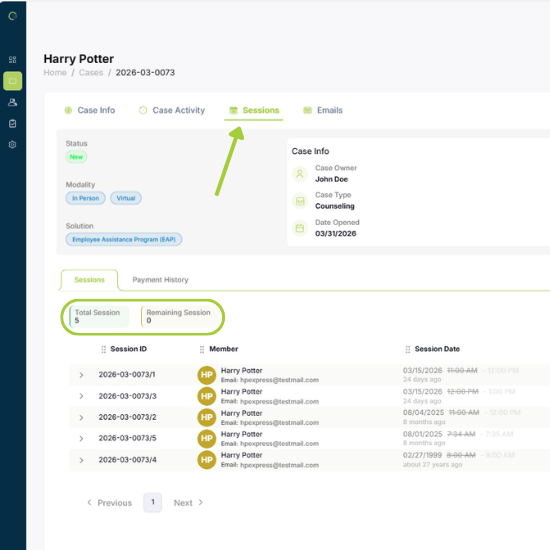
1. Open the case and click the Sessions tab.
Check the Total Sessions and Remaining Sessions counters at the top of the tab to confirm sessions are available.
Session count: The count reflects sessions authorized for this case only. If a provider is reassigned, remaining sessions carry over automatically.
If additional sessions are needed, providers should contact VITAL WorkLife. Session counts are managed by VITAL WorkLife staff only.
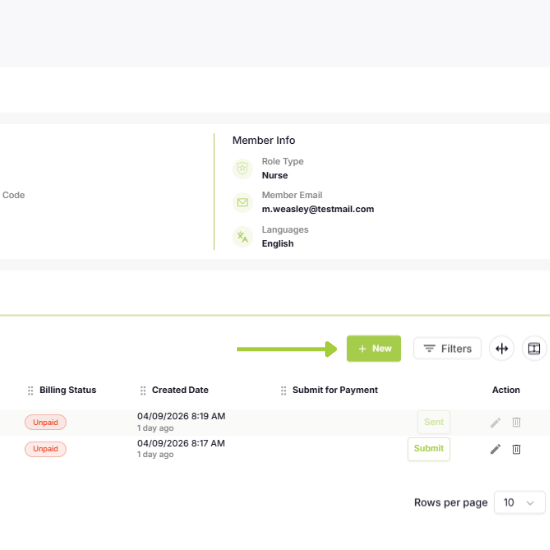
Click + New
2. Click the green + New button on the right.
Complete Required Fields and Save
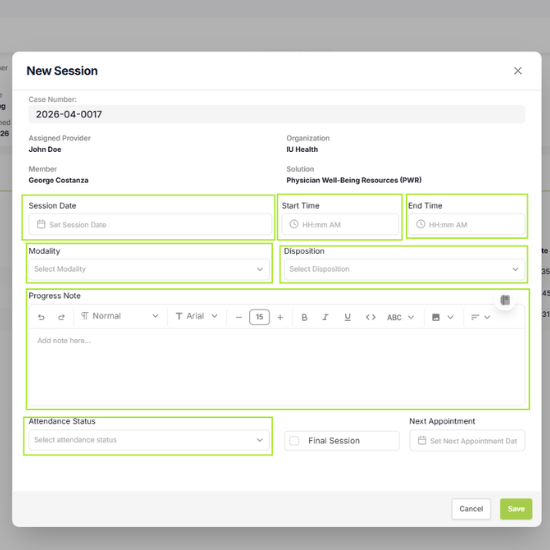
3. Complete: Session Date, Start/End Time, Modality, Disposition, Progress Note, Attendance Status.
a. For Progress Notes, Templates via the binder icon (optional) are available.
4. Check Final Session if this is the last session for the case.
5. Click Save.
| Final Session matters: Certain services have specific closing requirements that the system initiates when Final Session is selected. Always check it when applicable. |