Get Started with VITALsync
VITALSync is VITAL WorkLife’s purpose-built Case Management System designed to strengthen how we coordinate, document, and deliver care across our entire network.
Start Here
Registration & Login
-
For first time users, you will receive a secure email invitation based on your VITAL WorkLife email address or your active provider profile in HubSpot.
-
Look for the email invitation in your inbox. It will be from [email protected]. Click the registration link in the email to set up your account. The link will direct you to create your password.
-
Create a secure password and complete your registration.
- Credentials are unique and must not be shared.
If you experience issues during registration, check your spam/junk folder for the registration email. Still don't see it, Contact Us by clicking the button below.
Registration Process
Registration is initiated by the VITALsync administration team. You do not need to create an account on your own. Here is what to expect:
See What’s Inside
Navigating VITALsync: Platform Layout
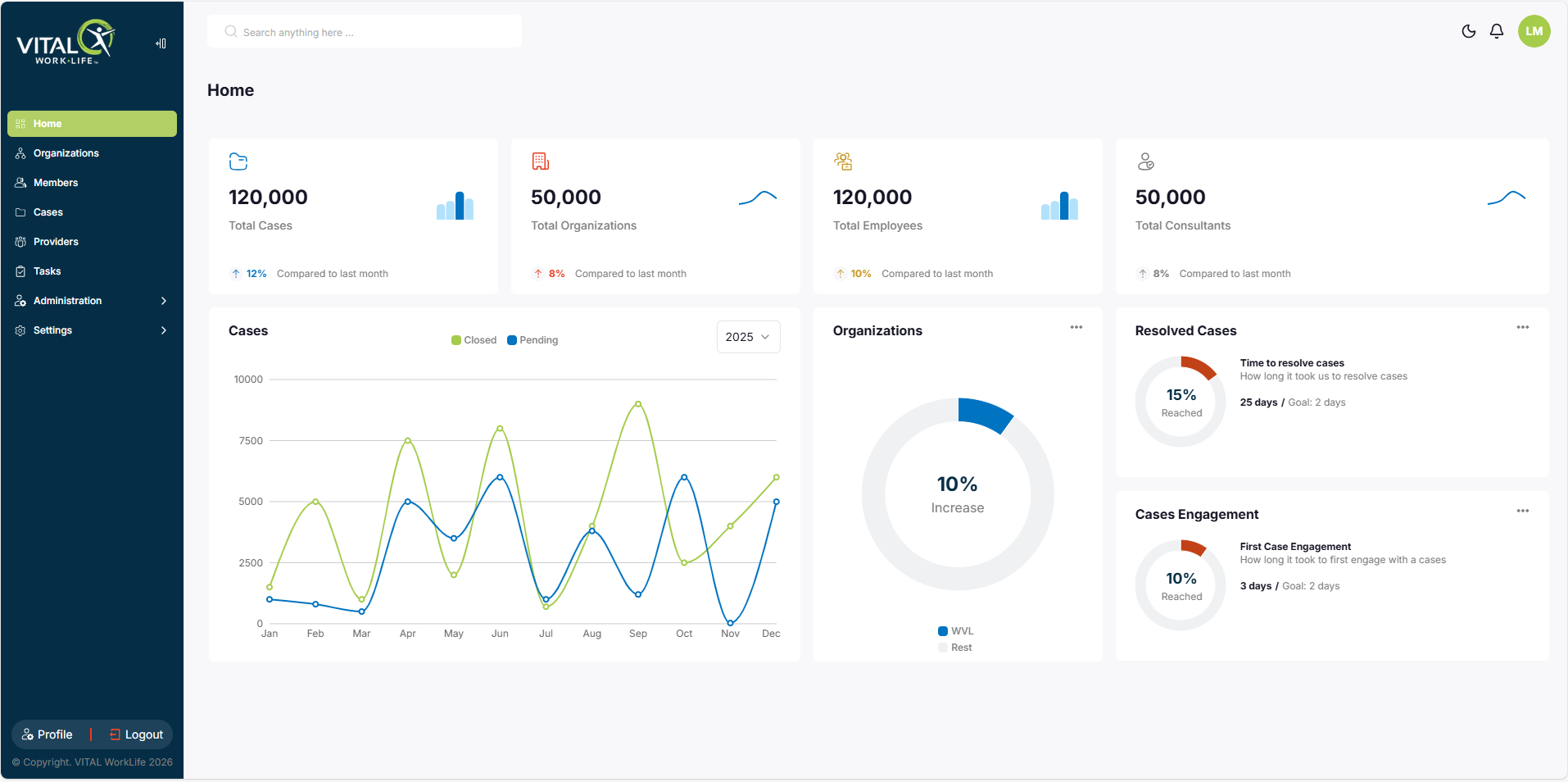
Home (Dashboard)
The Home page is your landing page when you log in. It provides a snapshot overview of your work within VITALsync, including summary cards showing key metrics such as total cases, active cases, closed cases, and pending cases. The dashboard view is customized based on your role, so providers will see case-related metrics relevant to their practice, while internal staff will see broader operational data.
Cases
The Cases module is the core of VITALSync. From here you can view, search, create, and manage all your assigned cases.
- Case List View: A filterable table displaying case number, case type, primary reason, date opened, assigned provider, status, and action options.
- Search and Filter: Use dynamic filters to search by case number, case type, status, member name, or other criteria. You can also use the Global Search bar at the top of the screen.
- Case Detail View: Clicking into a case reveals the full case record, organized into tabs including case information, member details, contact preferences, assigned provider, organization information, activities, sessions, tasks, and notes.
- Case Breadcrumbs: A breadcrumb trail appears below the case number so you can easily navigate back to the case list or to the member’s record.
Members
The Members module represents VITAL WorkLife's shift to a member-centric model. VITALsync maintains dedicated member records that link to all of a member’s cases and history.
- Member List: A searchable list of all members with key identifying information.
- Member Detail View: Displays the member’s profile information, contact details, linked organization, and a complete list of their cases across all service types.
- Add Member: Authorized users can create new member records when a member contacts VITAL WorkLife for the first time. If a member has registered via the Member Platform or has been ingested through an eligibility file, their record will already exist.
Tasks
Track and manage follow-up actions for your cases. Tasks appear within the Case Activity tab and help you stay on top of assignments, due dates, and coordination steps throughout the life of a case. Use Tasks to create action items, assign work to team members, and monitor progress with updated status values (Active, Completed).
Where to find it: Open any case, then navigate to the Case Activity tab. Tasks are listed at the bottom alongside Activities tab.
What you can do:
- Create a new task with a description, assignee, and due date
- Track task status (Active or Completed)
- View all tasks tied to a case in one place
Profile
Access your Profile from the bottom-left of the navigation panel or the top-right user icon to manage your personal and account settings.
- Account Detail: Update your name, phone number, email, and optionally upload a profile picture.
- Profile Detail: Providers can view and manage professional information — bio, specialties, credentials, licenses, rates, and billing address. Updates sync across VITALsync and are reviewed by the Network Management Team.
- Sessions — View all sessions across your cases in one place. Quickly check payment status, edit a session note (if not yet submitted for billing), and submit sessions for payment. Each session includes a Session ID for matching against billing remittances.
- Change Password: Update your password at any time. New passwords must meet security complexity requirements.
- Security: Enable or disable Multi-Factor Authentication (MFA) with a simple toggle. When turned on, MFA adds a phone-based verification step at sign-in. Switch the toggle on and follow the prompts to connect your device.
Get Started
Ready to get started? You've got the basics down — head into VITALsync and start exploring.